

WordPress speed-up: measure first, then fix in order
A shop owner notices the site has slowed down and installs three different "speed" plugins the same evening. The next morning pages open even later and the cart sometimes looks empty. Speeding up WordPress is not about the number of plugins; it comes from a few correct steps done in the right order: measure first, then remove the bottleneck from the bottom layer upwards. This article walks through that order step by step.
Measure first: TTFB and Core Web Vitals
Every change made without measuring is a guess. Look at two kinds of metrics. The first is server side: TTFB, the time the browser waits after sending the request until it receives the first byte of the response. A high TTFB usually points to an old PHP version, missing caching or a slow database query.
The second is what the user experiences: Core Web Vitals. Today this trio is measured as LCP (how long the largest content element takes to render), INP (how quickly the screen responds after a click or tap) and CLS (how much elements shift while the page loads). INP replaced the older FID metric in March 2024, so read older guides that talk about FID with that in mind. The "good" thresholds are 2.5 seconds for LCP, 200 milliseconds for INP and 0.1 for CLS, met for 75% of visits. Details are on the web.dev Core Web Vitals page.
In PageSpeed Insights the field data at the top comes from real visitors; the lab score below it is the result of a single test machine. If that machine is far from Turkey, it shows TTFB worse than it is. We covered this trap in our article on TTFB measured from Turkey.
A quick TTFB measurement from the command line
Run this a few times from your own computer on a connection in Turkey and look at the average:
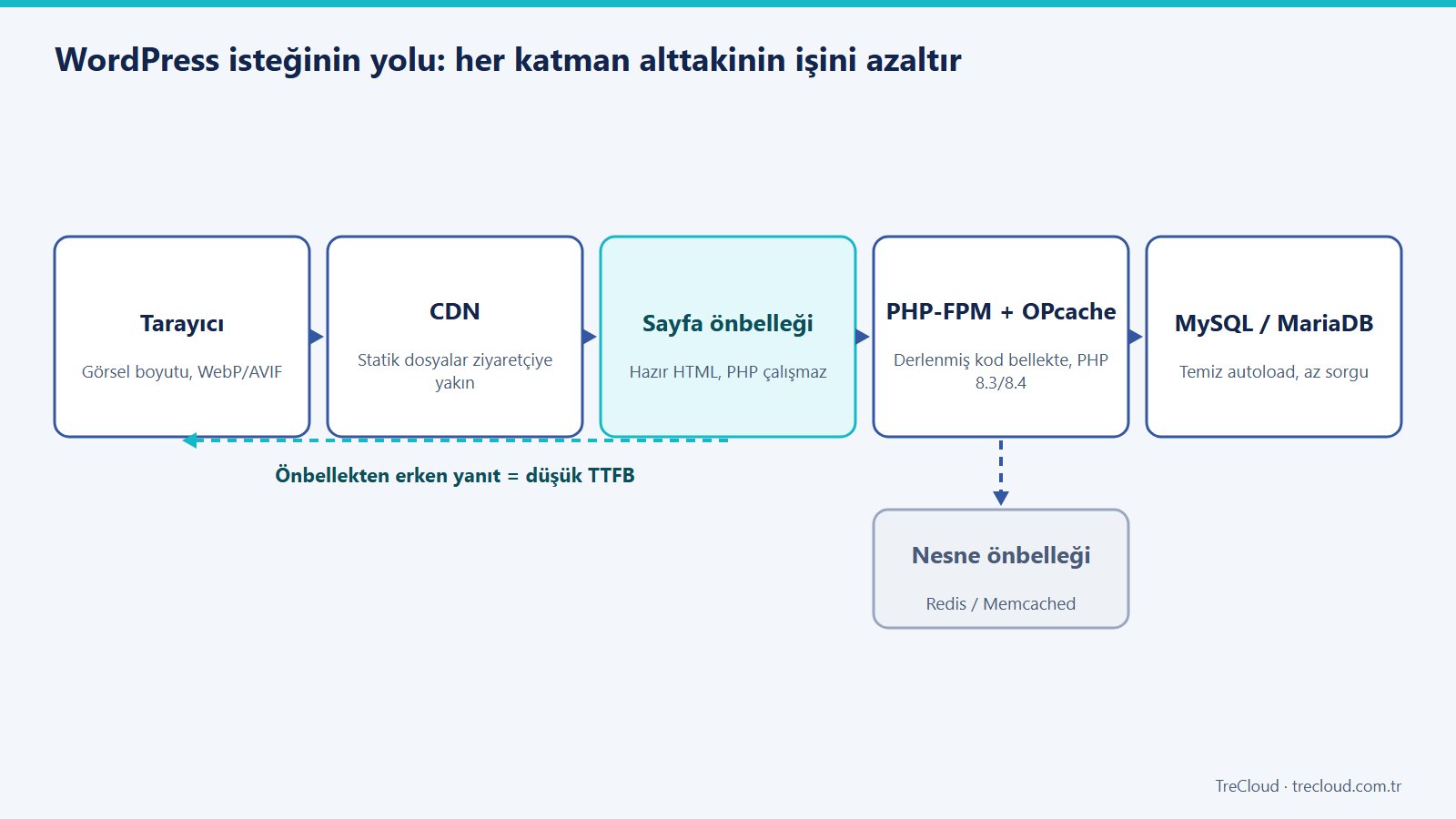
curl -o /dev/null -s -w 'TTFB: %{time_starttransfer}s Total: %{time_total}s\n' https://example.com/Measure the home page and a post page without logging in, write the result down and repeat after each step. The diagram below shows the path a request takes: each layer reduces the work of the layer beneath it.
PHP version and OPcache
The cheapest speed-up is the PHP version. Security support for PHP 8.1 ended on December 31, 2025; in 2026 the target should be PHP 8.3 or 8.4. Newer versions run faster and still receive security patches. On TreCloud hosting, the version you use appears in the client panel on the "PHP Version" line of the service's Service Information section; you change it from the PHP version screen in cPanel.
Take a backup before changing the version; a plugin that has not been updated for a long time can throw a fatal error on a newer version. For a detailed plan see our article on a planned move to PHP 8.
OPcache keeps the compiled form of PHP files in memory and prevents the same code from being compiled again on every request. It is enabled on most servers, but do not assume; verify. In the WordPress admin, Tools › Site Health › Info › Server shows the PHP version and active extensions. On your own cloud server you can also check from the command line:
php -i | grep -i opcache.enableThis command shows the command-line settings; for PHP-FPM, check its configuration file separately. With PHP 8.3 on Ubuntu 24.04 the file is at /etc/php/8.3/fpm/conf.d/10-opcache.ini.
Page cache: one layer, the right exceptions
On every visit WordPress runs PHP, sends dozens of queries to the database and produces the same HTML again. A page cache builds that HTML once and serves it ready-made to the next visitors. For visitors who are not logged in, this is the step that lowers TTFB the most.
The rule is simple: one page cache is enough. Two separate caching plugins overwrite each other's HTML, their minify settings collide, and finding the source of an error becomes hard. Pick a plugin that is up to date and works well with your server; we are not pushing any particular name here.
If you run a WooCommerce or membership site, the cart, checkout and "my account" pages must be excluded from the cache. Most plugins do this themselves once they detect WooCommerce, but check the setting with your own eyes once. Otherwise one customer's cart may appear to someone else, or stock may be shown incorrectly.
Object cache: Redis or Memcached
A page cache does not help logged-in users, the cart or the admin panel; those pages are produced by PHP every time. This is where the object cache comes in. WordPress already keeps frequently used data (settings, menus, query results) in memory, but that memory is wiped when the request ends. A persistent object cache (Redis or Memcached) keeps this data between requests and reduces the queries sent to the database.
The Site Health screen lists a missing persistent object cache as a recommendation. If your hosting package includes Redis or Memcached, get the connection details from cPanel or the support team and enable it with a suitable plugin. If it does not, do not force it; on a small corporate site the gain is limited. On your own cloud server you can install Redis yourself:
sudo apt install redis-server php-redis
sudo systemctl enable --now redis-server
Define the connection according to the plugin's instructions; to see the active cache and flush it:
wp cache type
wp cache flush
Images: size, WebP and AVIF
On most sites the LCP element is an image: a banner or a product photo. An NVMe disk does not make a 3 MB photo fast either; 3 MB still travels over the network. Fix the size first: if a 4000-pixel-wide photo will be shown in a 1200-pixel area, shrink it before uploading.
WordPress has supported WebP uploads since 5.8 and AVIF since 6.5; the image library on the server must support these formats too. WordPress generates several sizes of an uploaded image and offers them to the browser through srcset. Lazy loading should be off for the main image at the top of the page; current WordPress handles this itself in most themes and gives the first large image high priority. For CLS, images need width and height values in the HTML. More detail is in our article on 3 MB images and LCP.
Plugin diet
The number of plugins is not a measure on its own. The problem is plugins that load their own CSS and JavaScript on every page and send queries on every request. List the active plugins:
wp plugin list --status=activeThen ask each one a question: what can the site not do without this plugin? Two SEO plugins doing the same job, an unused slider and a "related posts" plugin that runs heavy queries on every page are the first candidates. Delete nulled (license-cracked) plugins immediately for security. Disabling plugins one at a time and measuring is safer than switching them all off in one night; we described this method in our article on a real plugin diet.
Database cleanup and autoload
On every page load WordPress pulls the settings marked for automatic loading (autoload) in the wp_options table into memory at once. Leftover settings from deleted plugins and bloated temporary data (transients) can push this load to megabytes; every request not answered from cache carries it. See the situation first. Since WordPress 6.6 the autoload column can hold values such as on, off and auto besides yes and no; the query below covers all autoloaded values and lists the 20 largest records:
wp db query "SELECT option_name, LENGTH(option_value) AS boyut FROM $(wp db prefix)options WHERE autoload IN ('yes','on','auto-on','auto') ORDER BY boyut DESC LIMIT 20;"If you see the name of a plugin you no longer use, first look for that plugin's own "delete data" option; if there is none, delete the record after taking a backup. Back up before every database operation:
wp db export yedek-$(date +%F).sql
wp transient delete --expired
The second command deletes expired transients. To delete all transients you can also use wp transient delete --all; WordPress regenerates what it needs, only the first few requests are a little slower. If post revisions pile up by the hundreds, add define('WP_POST_REVISIONS', 5); to wp-config.php to limit the number of revisions for new posts.
Moving WP-Cron to system cron
WP-Cron is not a real scheduler: on every page visit it checks whether any job is due. On a busy site this means unnecessary load; on a quiet site it means scheduled posts, backups and emails run late. The fix is to turn off visit-triggered runs and hand the job to the system cron. First add this line to wp-config.php, before the "That's all, stop editing" line:
define('DISABLE_WP_CRON', true);Then create a job in the Cron Jobs screen of cPanel that runs every 15 minutes. There are two ways. The first is to trigger the file over the web:
*/15 * * * * wget -q -O - "https://example.com/wp-cron.php?doing_wp_cron" >/dev/null 2>&1The second is to run the file directly with PHP. The PHP path and version can differ per server; adjust the command to the example on the Cron Jobs screen and to your account's home directory:
*/15 * * * * cd /home/user/public_html && php wp-cron.php >/dev/null 2>&1You can see the list of scheduled events and their next run time with wp cron event list. Why a cron job running every minute causes trouble is explained in our cron job article.
CDN: distant visitors and static files
A CDN delivers static files such as images, CSS and JavaScript from servers close to the visitor. If both your visitors and your server are in Turkey, the gain may be limited; if traffic from abroad is large, the difference is clear. If the CDN caches HTML too, define the cart, checkout and account exceptions there as well. A CDN does not hide a slow PHP layer; it comes after the previous steps, not instead of them.
Hosting limits: CPU, I/O and inodes
On shared hosting every account runs inside its own resource box. On TreCloud hosting that box is drawn by CloudLinux LVE: a neighbouring site's load does not choke you, but you cannot exceed your own limit either. Web packages have 2 CPU cores, 2–6 GB RAM depending on the package, 50 MB/s disk I/O and a limit of 250,000 inodes. A site that hits its limit does not crash, but it slows down or some requests get a resource limit error. We explained this mechanism in our CloudLinux article.
The inode count is the number of files and folders in the account; uncleaned cache folders and old backups left on the server fill it quickly. The statistics on the cPanel home page show CPU, memory, I/O and inode usage. If you are still at the limit after all the steps, the problem is the package size; consider a larger package or a cloud server.
Short summary: the order of work
Anything added on top before the layer below is fixed only hides the problem. Measure after each step:
- Measure TTFB and Core Web Vitals from Turkey and write them down.
- Move to PHP 8.3 or 8.4 and verify that OPcache is on.
- Set up a single page cache; check the cart and checkout exceptions.
- If your package has it, enable an object cache with Redis or Memcached.
- Shrink images and use WebP or AVIF.
- Review plugins one by one.
- Clean up autoload options and transients.
- Move WP-Cron to the system cron.
- Add a CDN if needed.
- If you are still at the limit, grow the package.
For WordPress's own performance advice, see the WordPress optimization documentation.
Frequently asked questions
How many plugins count as too many?
There is no fixed number; what matters is how much work each plugin does on each page. Disable plugins one by one and measure to see which one adds load.
Does a caching plugin make up for an old PHP version?
No. A cache only speeds up pages that can be cached; logged-in users, the cart and the admin panel still run through PHP. Move to PHP 8.3 or 8.4 first.
If my package has no Redis, will the site stay slow?
Not necessarily. If most visitors do not log in, page caching, image fixes and database cleanup make most of the difference. An object cache matters mostly for shops and membership sites.
Why is my PageSpeed score low on mobile and high on desktop?
The mobile test simulates a slower device and network, so heavy images and JavaScript are penalized more there. When deciding, look at field data rather than the lab score.
Comments0
No Comments Yet
Be the first to share your thoughts.
Please sign in or sign up to leave a comment.